Keyboard
Keyboard Typing Double Letters, Triggering Shortcuts or Dead Keys: A Troubleshooting Guide by Elimination
Keyboard double typing, typing on its own or dead keys? Release stuck modifier keys, turn on Filter Keys and spot the hardware fault in a few minutes.
7 min read
If your keyboard types double letters or opens Windows apps instead of typing, the problem is usually software: a modifier key stuck down virtually, a language shortcut triggered by accident, or contact bounce. It takes a few minutes to fix, with no new hardware.
Each step rules out one cause, from quickest to most technical. If several neighbouring keys died at the same time, go straight to step 5.
The 5 checks, from quickest to most technical
Quick summary
Step 1: the live state test in your browser (1 minute)
Before you change a single setting, look at what the keyboard actually sends. Open our keyboard tester, pick the QWERTY layout, then press each key slowly. The test runs entirely in your browser: nothing is recorded, and no keystroke is sent to a server.
Three things to read on the virtual keyboard:
- A key stays lit after you release it: it is physically stuck, or its release signal got lost.
- A key turns red: the tester received two presses less than 35 ms apart. Nobody types that fast with one finger. It is contact bounce (see step 3).
- A key never lights up: the keyboard does not send it at all. Note which ones; their position matters in step 5.
Everything lights up correctly, but your word processor types nonsense? The hardware is fine. The cause is in Windows: steps 2 and 4.
Step 2: the keyboard that fires shortcuts instead of typing (30 seconds)
You type "e" and File Explorer opens. You type "d" and the desktop appears. Windows thinks Win is held down, so every letter becomes Win + E, Win + D. Same logic with a stuck Ctrl: "s" saves, "p" opens the print dialog.
The key is not broken. Windows missed its release signal, which happens after locking the session with Win + L, a Remote Desktop session, a KVM switch, or a brief dropout on a wireless keyboard.
The purge takes ten seconds. Press and release each of these in turn, on the left and right side of the keyboard:
- Ctrl
- Alt
- Shift
- Win
- Esc
Each press sends the missing release. The keyboard starts typing again.
Two variants worth knowing:
- Sticky Keys: pressing Shift five times turns them on. Ctrl or Alt then stay "latched" after a single press. Turn them off in
Settings > Accessibility > Keyboard. - Gaming keyboards: many have a game mode that disables the Win key, often with Fn + Win. If the Windows key does nothing at all, look for a lit "lock" LED on the keyboard before you blame Windows.
Step 3: the letter that types twice (5 minutes)
"Helllo", "thannks". This is key chattering: as a key ages or gets dirty, its metal contact bounces and sends two signals for one press. The tester from step 1 proves it by showing the gap in milliseconds.
Software fix, for any keyboard. Windows can ignore the same key repeated too quickly:
- Press Win + I and open
Accessibility > Keyboard. - Turn on Filter keys, then open its options.
- Turn on Ignore repeated keystrokes and choose the shortest delay offered.
On Windows 10, the path is Settings > Ease of Access > Keyboard.
Keep the delay short: set it too long and Windows also swallows letters you double on purpose, like the "ll" in "hello".
⚠️ Warning: holding the right Shift for 8 seconds turns on Filter Keys with their default settings. The keyboard then seems dead, because brief presses are ignored. If your keyboard "died" after a long rest on Shift, simply turn Filter Keys off.
Hardware fix, for mechanical keyboards. Unplug the keyboard. Remove the faulty key's keycap with a keycap puller. Put one drop of 99% isopropyl alcohol at the base of the stem, where it enters the switch housing. Press the key twenty or thirty times in a row so the alcohol cleans the contact leaf, then let it dry for 10 minutes before plugging back in. No need to take the switch apart. Use 99% alcohol, not 70%: the latter is 30% water.
If your keyboard is hot-swap, replacing the faulty switch is quicker: it pulls out with the switch tool, no soldering.
Step 4: the accidental keyboard layout switch (3 minutes)
Shift + 2 gives " instead of @, or letters jump around entirely. Your keyboard is fine: Windows switched to another layout, such as UK instead of US, or AZERTY. Two shortcuts do it without warning:
- left Alt + Shift switches input language;
- Ctrl + Shift switches layout within the same language.
To neutralise them:
- Open
Settings > Time & language > Typing > Advanced keyboard settings. - Click Input language hot keys.
- On the Advanced Key Settings tab, select Between input languages, then Change Key Sequence.
- Set both Switch Input Language and Switch Keyboard Layout to Not Assigned.
That leaves Win + Space, which Windows does not let you disable. The workaround is to remove the layout you never use: Settings > Time & language > Language & region, click … next to your language, then Language options. Under Keyboards, remove the extra layout. With a single layout, no shortcut can switch anything.
Step 5: the "dead diagonal", a sign of hardware failure (10 minutes)
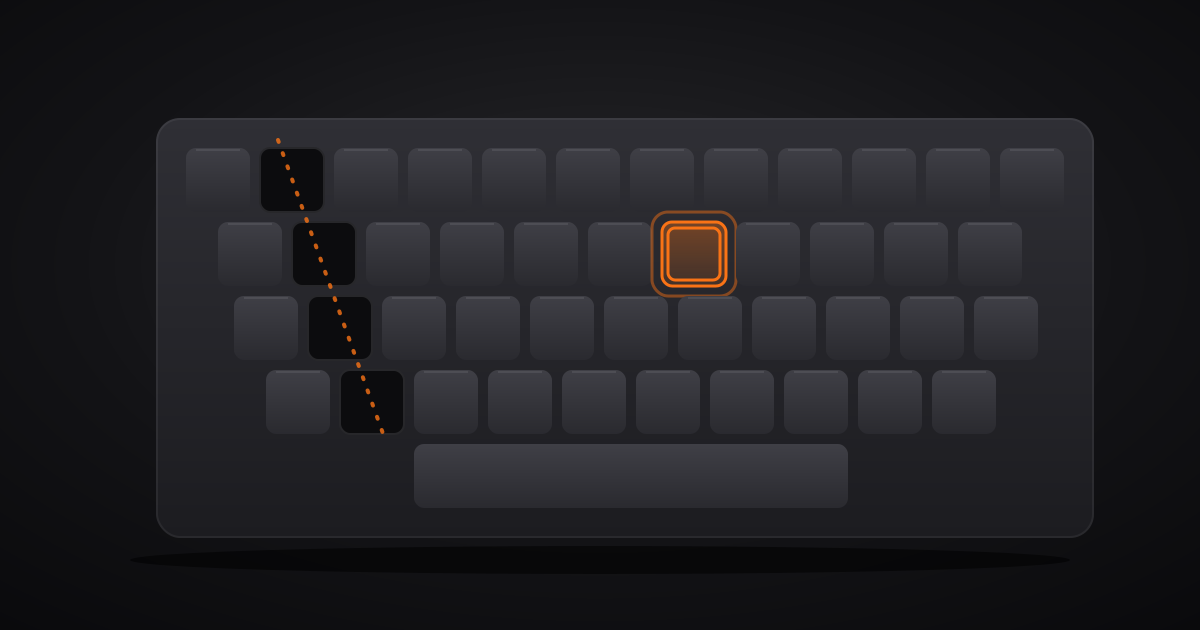
Several neighbouring keys die at once, often lined up diagonally: for example 1, Q, A and Z, or W, S and X. This is not a driver bug.
A keyboard does not have one wire per key. The keys are wired in a matrix: rows and columns that the controller scans constantly. Each key sits where a row crosses a column. When one trace breaks, every key on it dies together. And because keyboard rows are staggered, a matrix column often forms a diagonal on the physical keyboard.
A driver only receives key codes. It has no way to make one column of the matrix vanish.
💡 The moment of truth: restart and enter the BIOS/UEFI (often F2 or Del at startup), then try the dead keys in any input or navigation field. If they do not respond before Windows even loads, no driver is involved. Same verdict if an external keyboard behaves the same way on another PC.
The usual causes:
- A liquid spill, even weeks earlier. The sugar in coffee or soda dries, then corrodes the membrane traces.
- A laptop keyboard ribbon cable not fully seated or creased, often after a repair: screen, battery or SSD replacement.
- A cracked membrane from a drop or a twisted keyboard.
To keep working in the meantime, open the Windows on-screen keyboard with Win + Ctrl + O.
Wireless keyboard or persistent fault: last resorts
On a wireless keyboard, letters that double and go missing at the same time often point to weak batteries or a receiver that is too far away. Replace the batteries and plug the receiver into a front port or a USB extension cable, away from USB 3 ports, which can interfere with the 2.4 GHz band.
For a dead diagonal on an external membrane keyboard, replacing it costs less than repairing it. On a laptop under warranty, contact support and mention that the keys do not respond in the BIOS. That detail rules out software straight away. Out of warranty, a replacement keyboard for your exact model is usually available as a spare part.
Once the problem is fixed, repeat the step 1 test a few days later: no red keys, and no key that stays lit.